

Main Reasons Why AI Search Won’t Change Core Algorithms & Spam Policies
The digital marketing industry is always moving. This constant motion demands adaptability and a deep …


 ★★★★★ 5.0 · 100+ reviews








Table of Contents
MEET OUR TEAM!
Google’s Search Console Performance report is a powerful tool for analyzing organic search traffic, but configuring the exact filters and comparisons you need can be time-consuming. To address this, Google introduced an experimental AI-powered configuration feature in late 2025. This new tool lets you describe the analysis you want in plain English, and it automatically sets up the filters, date ranges, and metrics for you. In other words, instead of manually clicking through menus, you can simply ask, for example, “Show queries from mobile devices in Germany over the past month,” and the report is configured instantly to show those metrics.
By early 2026 the AI tool was rolled out to all users. Industry reports confirm Google announced it is now “available to everyone”. For SEO managers and marketers, this means less time wrestling with the interface and more time analyzing insights. This article explains what the AI-powered configuration feature does, why it matters for your SEO workflow, and how to use it effectively in your reporting.
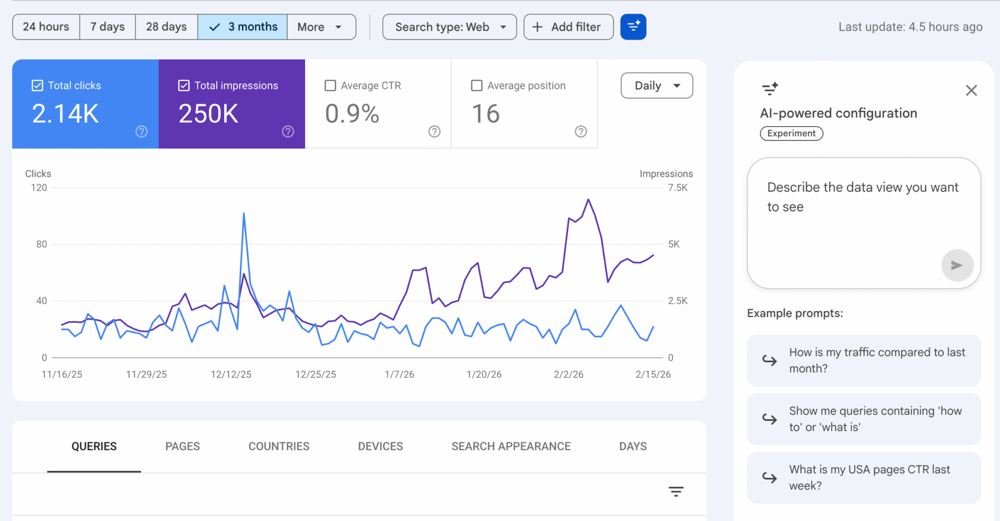
Google’s new AI-powered configuration tool lives in the Search Console Performance report. It works by accepting a natural-language prompt and converting it into the corresponding report setup. For example, typing “show me queries on mobile phones containing ‘sports’ in the last 6 months” will automatically apply a query filter, a device filter (mobile), and a date range filter. The AI handles three core tasks: applying filters (by query, page, country, device, search appearance, or date range), configuring comparisons (including custom date ranges), and selecting metrics (clicks, impressions, average CTR, average position) based on your request. In practice, this means you describe the data view you want, and the system sets up the report exactly that way.
Google’s documentation explains the process: open the Performance report, click the filter icon to access the AI panel, and type your request in the prompt field. The tool will suggest the filters, comparisons, and metrics it thinks match your query. You can then review and confirm these suggestions to apply them to your report. For example, if you enter “mobile traffic from Germany”, the tool will simultaneously apply both the device and country filters automatically. Importantly, the assistant preserves any existing filters: if you’re already viewing the last 28 days on mobile, asking “show pages containing ‘/blog’” will add the page filter on top of the existing settings. This interactive, conversational approach turns complex report building into a quick, text-based query.
The feature is still experimental. Currently, each user has a limit of 20 AI queries per day, and it’s available only in the Search results Performance report (not in Discover or News). Google’s announcement notes you should verify the filters the AI applies before analyzing the data, since the AI can sometimes misinterpret prompts. In essence, the AI assistant configures the report, but you remain responsible for checking its work.
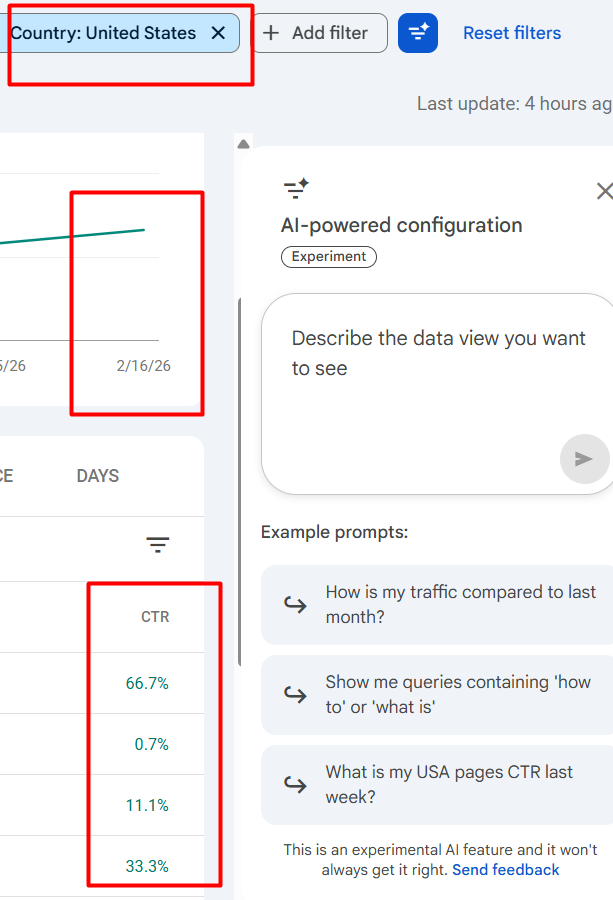
Here is a live Demo: What is my USA pages CTR last week?
This AI report builder offers several practical advantages for SEO professionals and marketers: faster reporting, broader accessibility, and more agile decision-making.
Faster report creation. Building complex reports manually – adding multiple filters, custom date comparisons, and selecting metrics – can take several minutes of clicks. With the AI tool, the same setup can be done in seconds by typing a single prompt. For example, asking the assistant to “compare last quarter’s blog page traffic vs. the same quarter last year” automatically configures a two-period comparison with the right date ranges and page filters. This speed is especially valuable in time-sensitive situations, such as preparing for meetings or on-the-fly client reporting.
Access for non-technical users. Search Console’s interface can intimidate beginners or small business owners who may not know all the settings. The natural-language approach lowers the barrier: if they can describe what they want, the AI will set it up. As Brafton notes, this “makes advanced analysis more accessible to non-technical users” and removes much of the guesswork from building reports. In practical terms, a marketer who isn’t an analytics expert can still extract actionable data by simply asking the tool questions in their own words.
Speed to insights. In a fast-changing market, quick access to targeted data is critical. Instead of exporting raw CSVs and manipulating them manually, analysts can get tailored charts instantly. This means spotting trends or anomalies faster. For instance, one prompt might generate a breakdown of mobile vs. desktop CTR in a given country, helping you quickly see if a recent site change improved mobile engagement. SEO blogs point out that this feature removes “several steps from the reporting process”, so teams can focus on interpretation rather than data wrangling. The AI builder essentially frees up time that was previously spent on repetitive configuration, letting you spend more time brainstorming strategy or optimizing content based on the results.
These benefits align with a larger industry trend of “conversational analytics” and AI-driven tools that democratize data insights. Early analyses highlight that the AI-config tool is not just a gimmick – it represents a shift in how companies might interact with analytics. For high-volume SEO teams, using AI configuration can become part of a streamlined workflow: routine report setups are automated, and the team can focus on interpreting and acting on the findings.
While powerful, the AI-powered configuration feature has important limitations and best practices to keep in mind:
Scope is limited. It only works in the Search Performance report (search results data). You cannot use it in the Discover or News tabs. It also only configures filters, comparisons, and metric selections – it cannot sort the table, filter by table values (e.g. “show pages with >100 clicks”), or export the data. In other words, it replaces manual report setup but does not replace the need to use other Search Console tools or the API for further analysis.
Accuracy caution. As Google warns, the AI can misinterpret queries. It’s essential to always review the suggested filters before relying on the report. For example, if you ask “show me the top queries from last month,” double-check whether the filters correctly set last month’s date range, rather than some other period. Treat the AI suggestions as a helpful shortcut, but verify that they match your intent. In practice, make sure your team includes a quick quality check step after using the tool.
Doesn’t replace analysis. The tool speeds up the mechanical part of report building, but interpreting the data still requires human insight. An AI-generated report might highlight a drop in clicks, but understanding why clicks dropped – or what action to take – is up to your expertise. In short, use the AI feature as an assistant to configuration, not as an analyst. It configures the report, but it does not generate strategic conclusions or writing.
Access rollout. Initially, the feature is rolled out only to a subset of sites. If you don’t see the “Customize with AI” option in your Performance report, it means your property hasn’t been included yet. Google will expand availability over time. Plan to check back periodically or keep an eye on Google’s announcements. If you can access it, experiment freely; if not, understand that it’s coming.
Best Practices: To make the most of this feature, integrate it gradually into your workflow. Use it for routine comparative reports (e.g. “compare mobile vs desktop conversions this year vs last”). Always add internal links or annotations after getting the data – for example, link from your CMS to the Google Help docs on Performance Report to remind readers what the metrics mean. Treat the AI report as a starting point: customize further if needed. For instance, after the AI sets up a report, you might still add your company’s branded query filter or adjust the date range manually. In short, use it to speed up steps, but keep ownership of the data and the final insights.
Follow these steps to use the new AI assistant in Search Console:
Remember, each user has a daily limit (currently 20 prompts), so use the tool for the most valuable queries. Use keyword-rich anchor links within your organization’s documentation or analytics dashboards to connect AI-generated insights to broader content (for example, link “CTR” to an internal guide on improving click-through rate). Always double-check the AI’s work before using the data in reports or decision-making.
The AI-powered configuration feature in Google Search Console marks a shift toward more natural, conversational analytics. By automating the setup of performance reports, it can save time and empower non-technical users to get meaningful data. However, it’s important to use the tool thoughtfully: verify outputs, understand its scope, and continue to apply expert judgment to the results.
Save time on routine reports: Let the AI handle repetitive filter setup so your team can focus on analysis. Use it for recurring reports like quarterly comparisons or campaign analyses to speed up preparation.
Make data accessible: Use natural-language prompts to involve more team members in analytics. For example, content marketers can ask for insights without a spreadsheet, while SEOs check the AI’s configuration. This broadens who can contribute to data-driven decisions.
Verify accuracy: Always review the AI’s filter selections and compare the results with your expectations. Remember that the tool only handles configuration; you still own the interpretation. Double-check tricky conditions (like date math) before acting on the data.
Integrate with workflow: Incorporate AI-built reports into your analytics routine. Use annotations, internal links to related documentation (e.g., linking to Google’s Performance report docs), and cross-channel analysis to make these reports part of your strategic story.
Learn and adapt: Since this feature is new, encourage your team to experiment and give feedback to Google. Share tips internally (or leave a comment here) about useful prompts and workarounds. Over time, Google may add enhancements (such as support for Discover data or exports), so staying engaged will help you adapt quickly.

Join the
Digipeak Newsletter!
Stay up to date with the latest digital marketing insights, trends, and updates. Subscribe today!
Related Articles
The digital marketing industry is always moving. This constant motion demands adaptability and a deep …

Welcome to the future of data-driven marketing. We are a 360° Digital Marketing Agency. We …

An in-depth review of top-ranking articles in the USA and the UK reveals a news-oriented …

The digital marketing world moves incredibly fast. Search engines constantly update their algorithms, crawling methods, …


